
Signals are the outcomes, behaviors, and failures you want to track. Each signal is stored as a signal event tied to a trace, so you can jump back to trace context. Signals are generated from trace data by Laminar’s internal AI agent (LLM signals). You define a prompt that describes what to look for (for example, “Agent completes checkout process”), and Laminar sends the signal definition plus the trace_id to the semantic-event service. The service returns a structured payload that Laminar stores as a signal event linked to that trace. Signals also support two execution modes:
  • backfill jobs on historical traces
  • live triggers for new traces

When to use LLM signals

  • Business outcomes - Describe criteria for a successful outcome, for example “User responded with ‘Thank you’”.
  • Logical errors - Describe a case when an agent fails to complete a task, for example “Agent fails to complete checkout process”.
  • Behavioral patterns - Categorize user requests by specifying “request category” in the structured output schema.
If you already log structured events in your application code, you do not need LLM signals for those.

Create a signal

To define a new signal from trace data:
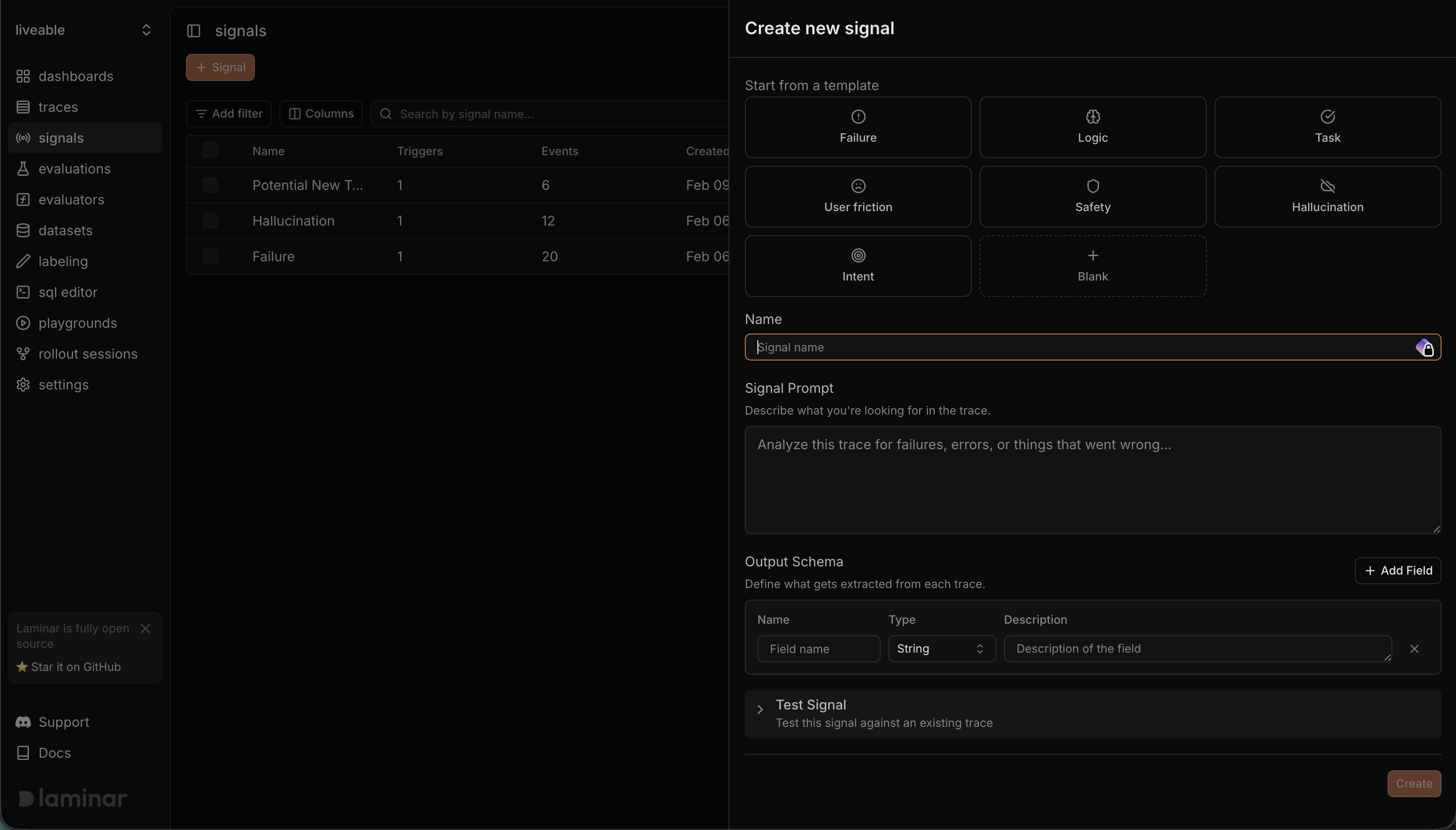
Create new signal form showing name, prompt, structured output schema, and test trace
  1. Open Signals and click Create signal.
  2. (Optional) Start from a template to prefill the prompt and schema.
  3. Fill in:
    • Name: choose a stable signal name (for example, checkout.completed or navigation.failed).
    • Prompt: describe what the signal should detect or extract from trace data.
    • Structured Output: define a JSON schema for the signal payload (keep it small and stable).
    • (Optional) Test Signal: enter a trace ID to validate the output before creating it.
  4. Click Create.

Run the signal on traces

Once the signal exists:
  • Use Jobs to backfill a time range or filtered set of traces.
  • Use Triggers to keep the signal running on new traces that match your trigger filters.

Jobs (backfill)

Use a job when you want to run a signal against historical traces or a filtered slice of data.
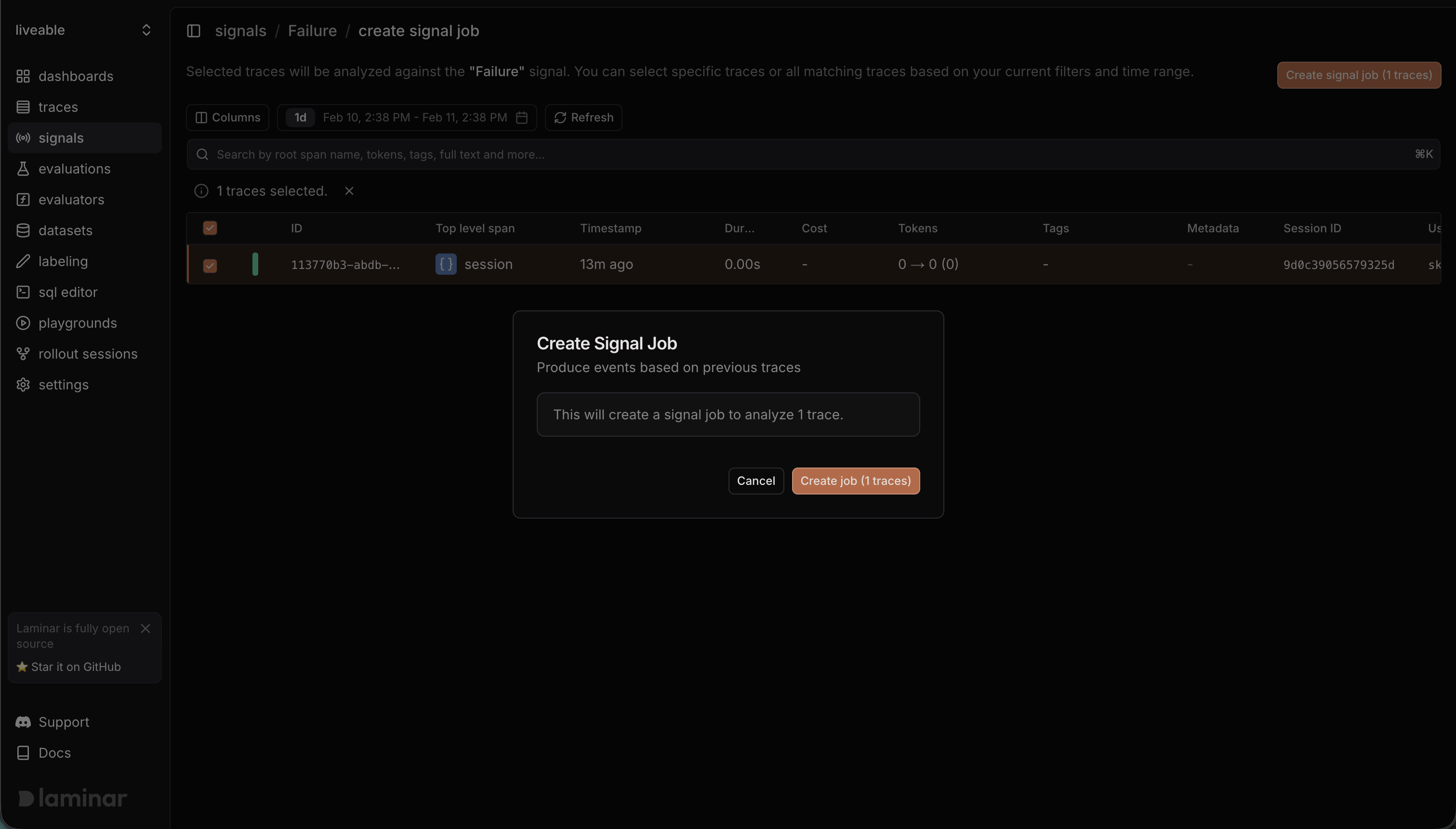
Placeholder screenshot for a signal backfill job run
How it works in the UI:
  • Go to the signal’s Jobs tab and click Create Job.
  • Pick a time range (default is the last 24 hours).
  • Add filters and/or search to narrow the trace set.
  • Select either specific traces or all traces matching your filters.
  • Click Create signal job to enqueue processing.
What to expect:
  • A job creates one run per trace.
  • Runs appear in the Runs tab with status (Pending, Completed, Failed).
  • If the signal is identified, you will see an Event ID and the signal appears in the Events tab.
  • If the signal is not identified, the run completes without an event.

Triggers (live)

Use a trigger to run the signal automatically on new traces.
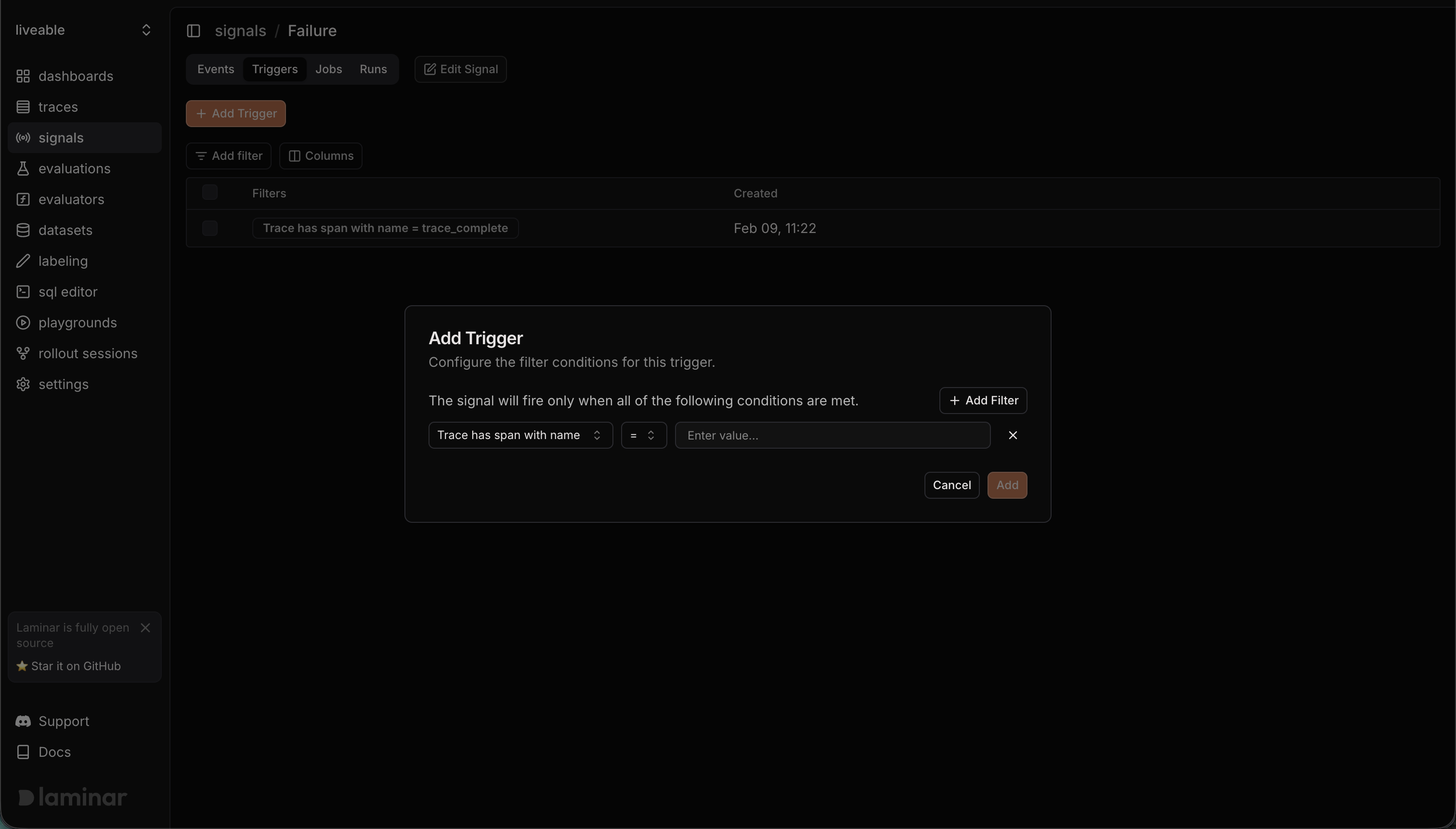
Placeholder screenshot for a signal trigger setup
How it works in the UI:
  • Go to the signal’s Triggers tab and click Add Trigger.
  • Add one or more filters (all conditions must match).
  • The trigger runs on new traces that match those filters.
What to expect:
  • Each matching trace creates a run with source “Trigger.”
  • Signal events appear in the Events tab when identified.

Viewing signal events

In the Laminar dashboard:
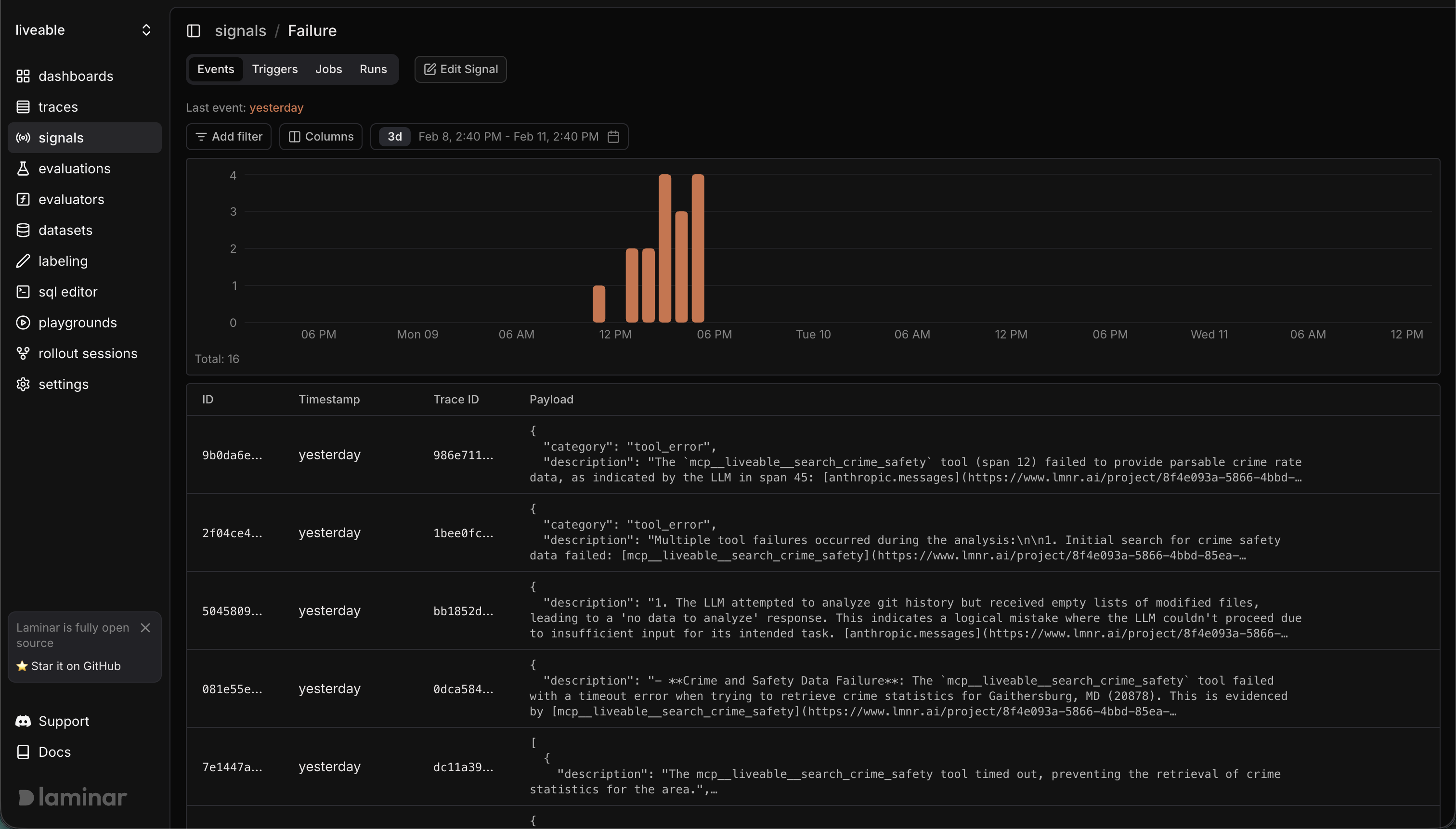
Signals events table with filters and trace links
  1. Go to Signals and open your signal.
  2. Use Events to see the raw event stream and jump to traces.
  3. (Optional) Query signal events in the SQL Editor using the signal_events table (examples below).

Querying signal_events in SQL

The signal_events table stores each event’s payload as a JSON string. The Signals UI payload filter uses a key=value match by applying simpleJSONExtractString / simpleJSONExtractRaw to payload, so you can mirror that behavior in SQL.

Quick payload filters (UI-equivalent)

SELECT
    timestamp,
    trace_id,
    name,
    payload
FROM signal_events
WHERE name = 'checkout.completed'
  AND (
    simpleJSONExtractString(payload, 'error_type') = 'timeout'
    OR simpleJSONExtractRaw(payload, 'error_type') = 'timeout'
  )
  AND timestamp > now() - INTERVAL 7 DAY
ORDER BY timestamp DESC
LIMIT 200

JSONExtractFloat for numeric comparisons

SELECT
    timestamp,
    trace_id,
    JSONExtractFloat(payload, 'score') AS score,
    JSONExtractFloat(payload, 'latency_ms') AS latency_ms
FROM signal_events
WHERE name = 'qa.answer_quality'
  AND JSONExtractFloat(payload, 'score') >= 0.9
  AND timestamp > now() - INTERVAL 30 DAY
ORDER BY score DESC

JSONExtract for typed or nested fields

SELECT
    timestamp,
    trace_id,
    JSONExtract(payload, 'summary', 'String') AS summary,
    JSONExtract(payload, 'metrics', 'confidence', 'Float64') AS confidence,
    JSONExtract(payload, 'labels', 'Array(String)') AS labels
FROM signal_events
WHERE name = 'support.intent_classification'
  AND timestamp > now() - INTERVAL 14 DAY
ORDER BY timestamp DESC
LIMIT 100

Clustering signal events (optional)

Laminar can cluster signal events by sending each event’s short summary to a clustering service, grouping similar events together so you can spot recurring patterns quickly. Clustering runs automatically after events are created if the clustering service is enabled in your deployment. If you’re self-hosting, make sure CLUSTERING_SERVICE_URL and CLUSTERING_SERVICE_SECRET_KEY are set to enable clustering.

Example signals (token waste)

Use signals to flag traces where the model burned tokens without improving outcomes. Here are a few practical examples you can adapt:

1) Long context, short outcome

Intent: The model consumed a large context window but produced a short or low-value response. Prompt (example):
Detect cases where the trace shows a large prompt context (many messages or long system context),
but the final response is brief or repetitive. Return a short reason for the waste.
Structured output (example):
{
  "type": "object",
  "properties": {
    "waste_type": { "type": "string", "enum": ["long_context_short_answer"] },
    "reason": { "type": "string" },
    "suspected_cause": { "type": "string" }
  },
  "required": ["waste_type", "reason"]
}

2) Tool loop without progress

Intent: The agent repeats tool calls or retries the same step without making progress. Prompt (example):
Identify traces where the agent repeats the same tool call or retries the same step multiple
times without producing a new outcome. Summarize the loop and the step that stalled.
Structured output (example):
{
  "type": "object",
  "properties": {
    "waste_type": { "type": "string", "enum": ["tool_loop"] },
    "looped_step": { "type": "string" },
    "retry_count_estimate": { "type": "integer" }
  },
  "required": ["waste_type", "looped_step"]
}

3) Overpowered model for a trivial task

Intent: A complex or expensive model is used for a simple request. Prompt (example):
Find traces where the task appears trivial (e.g., short factual lookup or simple formatting),
but a heavy model or long chain of steps was used. Return a short justification.
Structured output (example):
{
  "type": "object",
  "properties": {
    "waste_type": { "type": "string", "enum": ["model_overkill"] },
    "task_summary": { "type": "string" },
    "justification": { "type": "string" }
  },
  "required": ["waste_type", "task_summary"]
}