
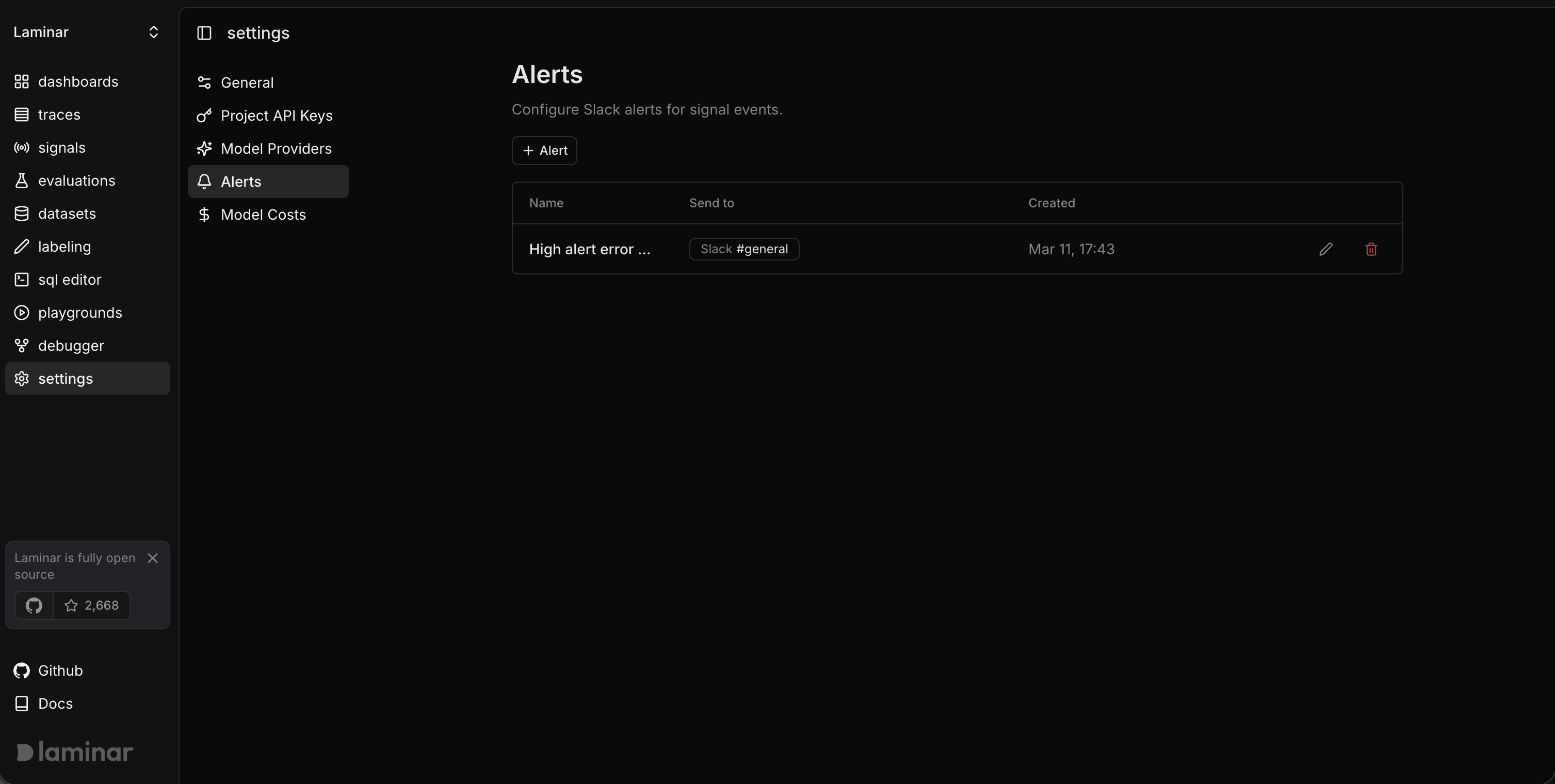
Alerts require a Slack integration and are available on paid plans only.
Prerequisites
Before creating alerts, you need:- A connected Slack integration — Connect Slack from Workspace > Integrations (see Integrations). You can also connect Slack directly from the Alerts settings page.
- At least one signal — Create a signal in your project (see Signals). Alerts fire based on signal events.
Create an alert
- Go to Project Settings and select Alerts from the sidebar.
- Click the + Alert button.
- Fill in the alert form:
- Name — A descriptive name for the alert (for example, “High error rate alert”).
- Signal — Select the signal that will trigger the alert. After selecting a signal, a preview chart shows how often it would have triggered in a recent time period.
- Slack Channel — Pick the public Slack channel where notifications should be sent.
- (Optional) Click Test to send a test notification to the selected channel.
- Click Create.
Edit an alert
- Go to Project Settings > Alerts.
- Find the alert in the table and click the edit (pencil) icon.
- Update the name, signal, or Slack channel.
- Click Save.
Delete an alert
- Go to Project Settings > Alerts.
- Find the alert in the table and click the delete (trash) icon.
- Confirm the deletion in the dialog.
How alert notifications work
When a signal event is detected on a trace, Laminar checks if any alerts are configured for that signal. For each matching alert, a Slack message is sent to the configured channel containing:- The signal name
- Extracted information from the signal’s structured output
- A link to the trace so you can investigate directly